

.svg)
.svg)
.svg)
.svg)
.svg)
.svg)
.svg)
.svg)
.svg)
.svg)
.svg)
.svg)
.svg)
.svg)
.svg)
.svg)
.svg)
.svg)
.svg)
.svg)
.svg)

Tonight I updated my Apple Watch to watchOS 2.0. Although it took longer than I expected, I immediately saw a useful new feature- I can now use it to send email. Since we build products we ourselves love to use, that also means I use Paubox to seamlessly encrypt all of my email. In other words, with the latest watchOS 2.0 update, I believe I just sent the world's first encrypted email from the Apple Watch. Here's how I did it.
Step 1: Update to watchOS 2.0
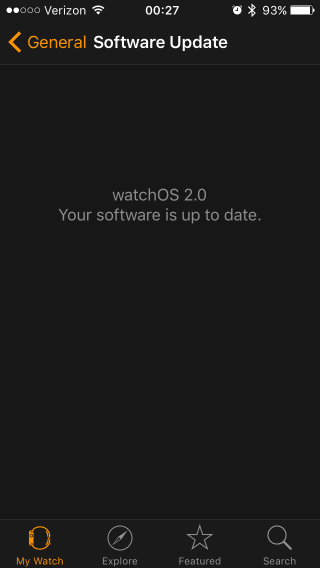
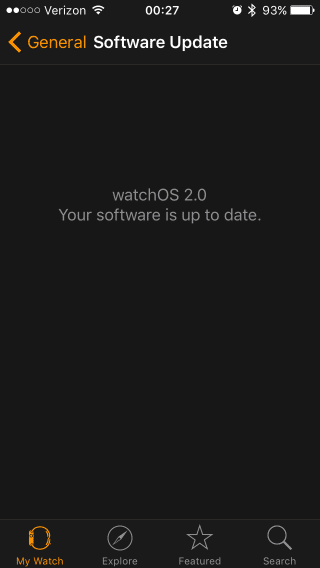
There's a simple update guide from Apple that shows you how to do it. It takes awhile but it does work. When your Apple Watch is properly updated to watchOS 2.0, you'll see a screen on your iPhone similar to this:
Step 2: Check your Inbox
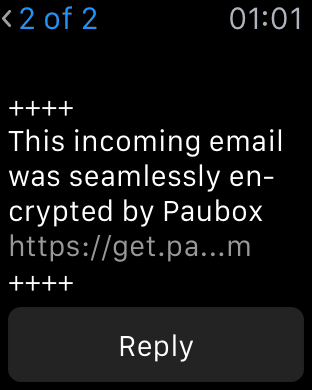
Now when you open the Mail app on your Apple Watch, you'll see a new button at the bottom of each email - Reply. The screenshot below is from my watch (Paubox also seamlessly encrypts inbound email, in case you're wondering what that footer text is). Now all I have to do now is is tap Reply.
Step 3: Choose a Reply
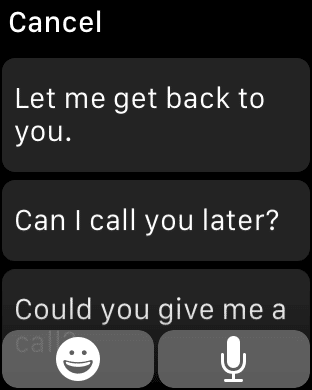
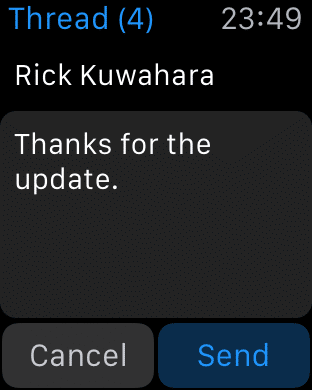
To send a reply, I can pick from a set of Default Replies and then just tap Send.
Secretbonus: Dictate a Custom Reply
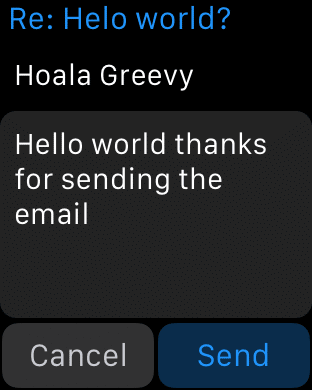
What I thought was pretty cool is that I can also use the watch's mic to compose custom replies. It worked pretty well for me at home.
Conclusion: What Just Happened?
Since my iPhone is already configured for Paubox email, my Apple Watch establishes a secure Bluetooth connection to it to send email. From there, the email gets sent via 256-bit AES encryption from my iPhone out to Paubox. Paubox takes care of the rest and makes sure the email gets encrypted during the entire transit to the recipient. For busy healthcare professionals, this means they can send HIPAA compliant encrypted email from their Apple Watch seamlessly and easily. This is what an email looks like on the other end:

That's it. No portals to visit, no apps to download. The encrypted email is sitting in the recipient's inbox with a small footer in it from the Apple Watch (I customized it a bit). About Paubox: We provide seamless encryption for HIPAA compliant email. We got rid of the cumbersome portals, keywords, Outlook plugins, and separate app downloads. We also seamlessly encrypt inbound email and our product is compatible with Office 365, Google Apps for Work, and Microsoft Exchange. We are a startup based in San Francisco, CA.