

.svg)
.svg)
.svg)
.svg)
.svg)
.svg)
.svg)
.svg)
.svg)
.svg)
.svg)
.svg)
.svg)
.svg)
.svg)
.svg)
.svg)
.svg)
.svg)
.svg)
.svg)
.svg)


Using the Microsoft 365 Exchange Admin Center, it’s possible to configure Spam Email Filtering for all users in an Microsoft 365 environment. This would apply to customers using Microsoft 365 for their email platform and Paubox as their HIPAA compliant email solution. Here’s how to do it.
See Also: How Does Paubox’s Spam Filtering Feature Work?
Create a Microsoft 365 Transport Rule to Filter Spam Emails Based on Paubox Header Information
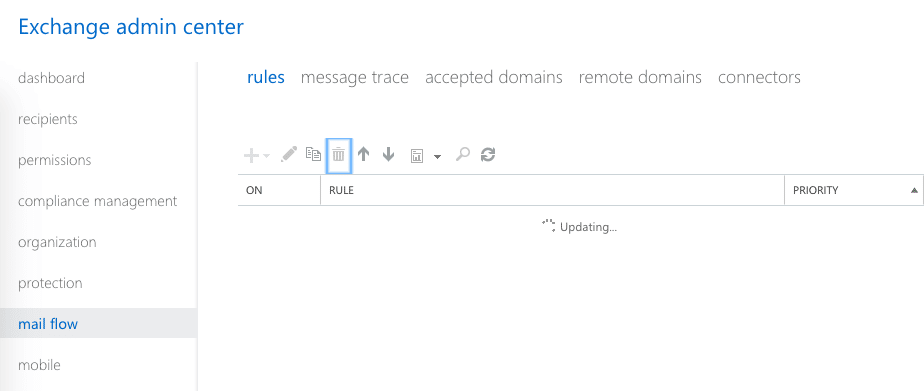
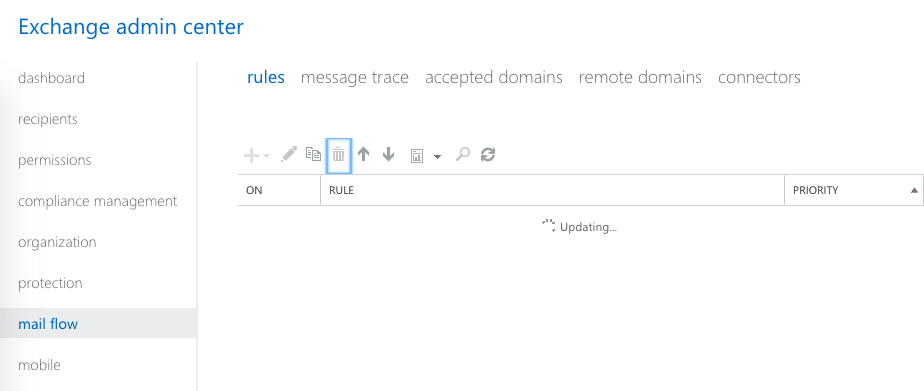
- Login to the Microsoft 365 Exchange Admin Center using Admin-level credentials.
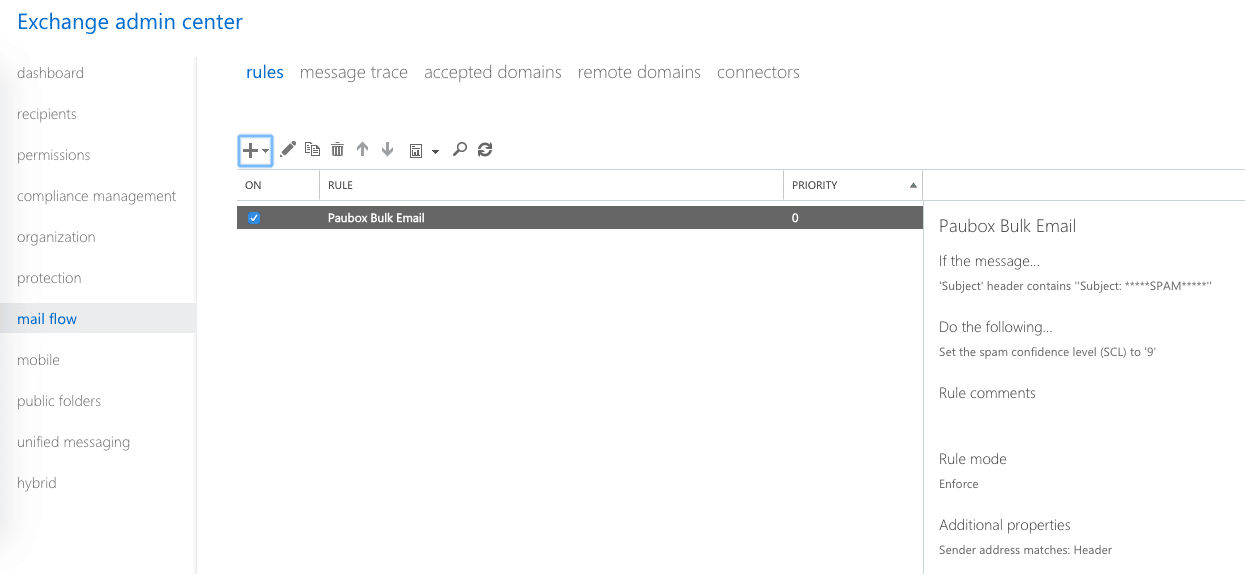
- Click Mail Flow then Rules
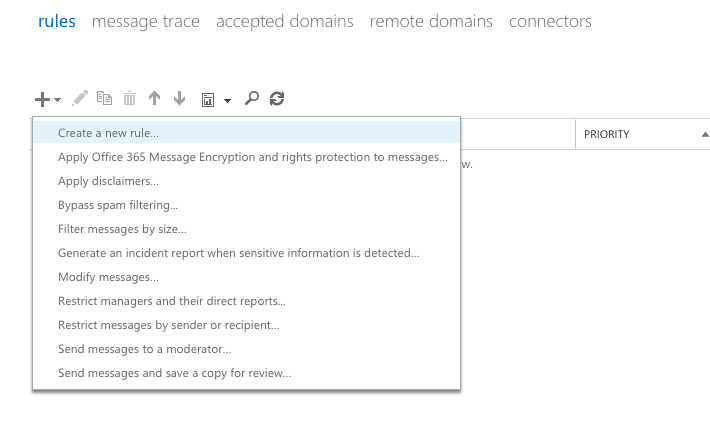
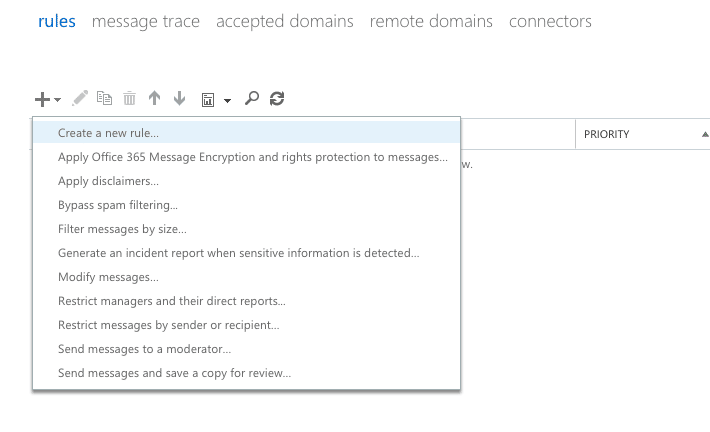
- Click + and then select Create a new rule...
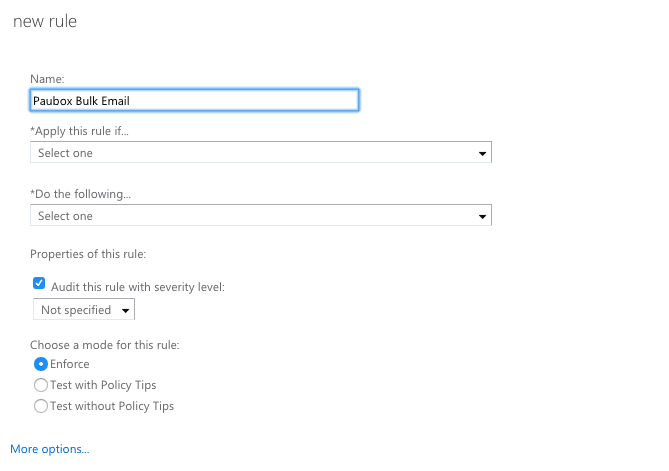
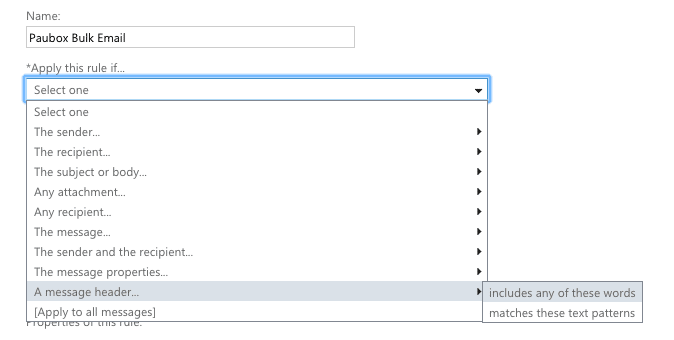
- In the proceeding pop-up window, name the rule Paubox Bulk Email then click More options...
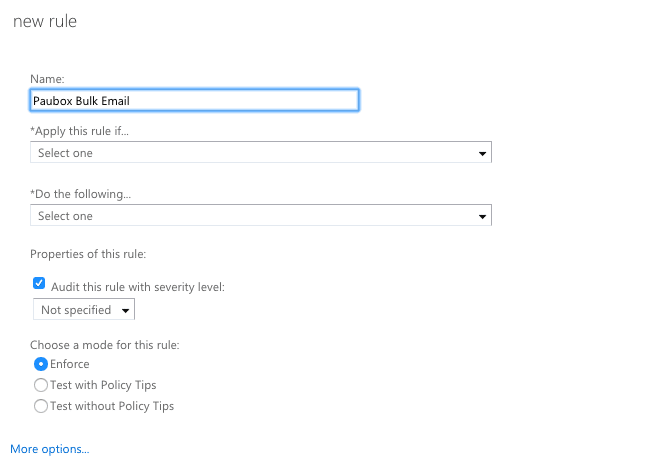
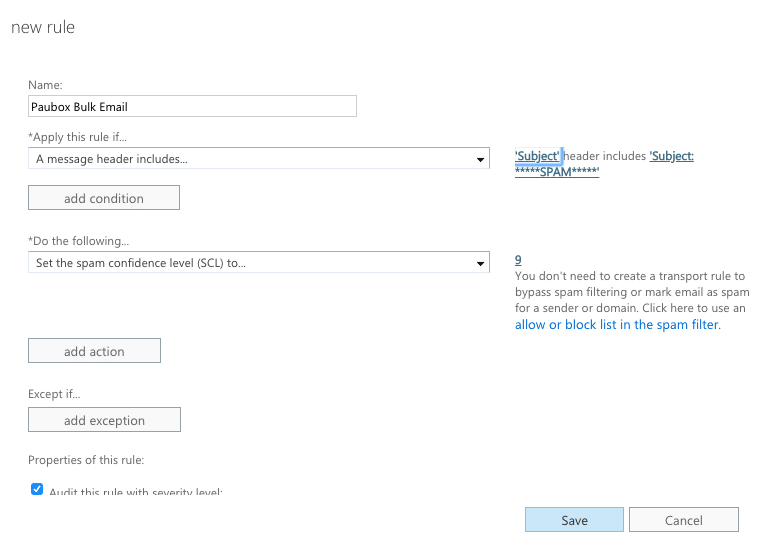
- Under *Apply this rule if..., select A message header... > includes any of these words.
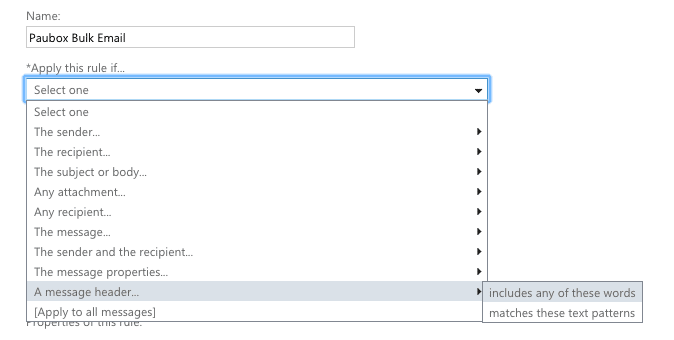
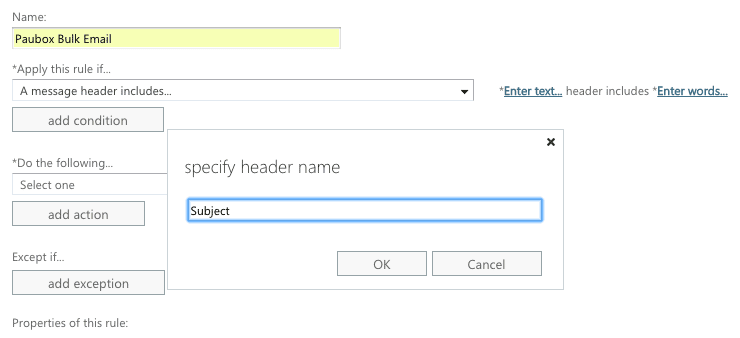
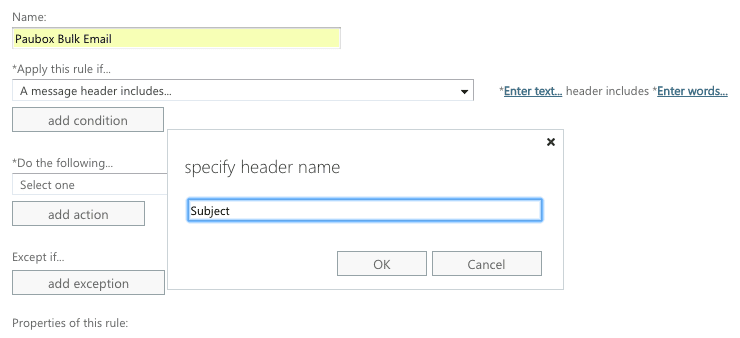
- Next click Enter text..., type Subject, then click OK
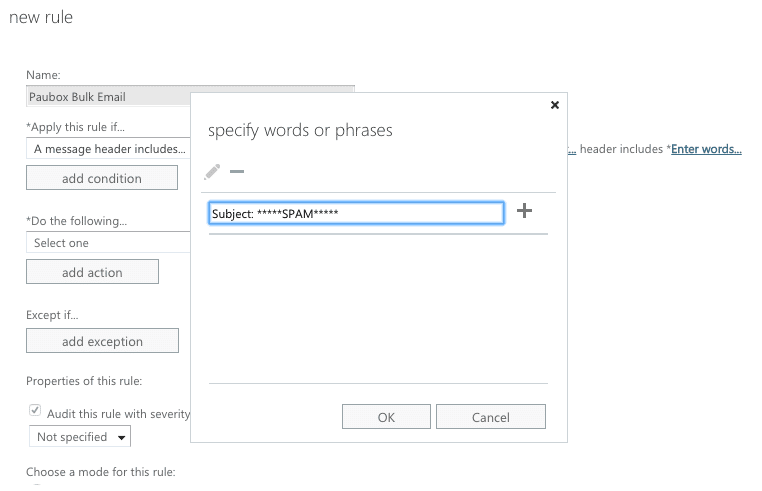
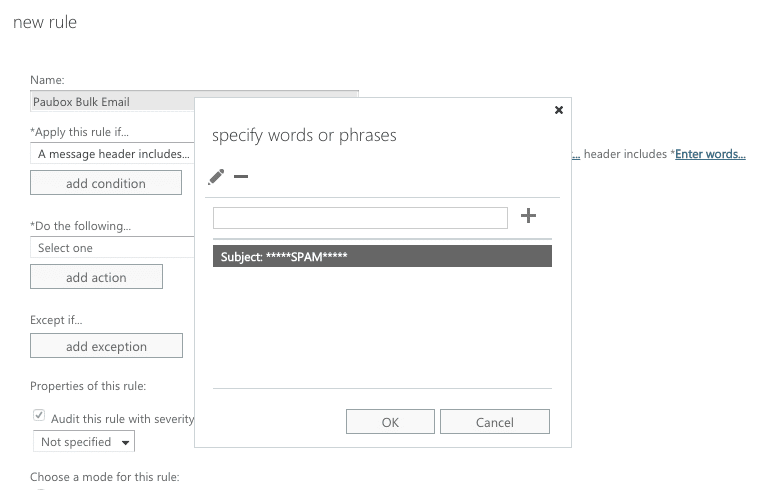
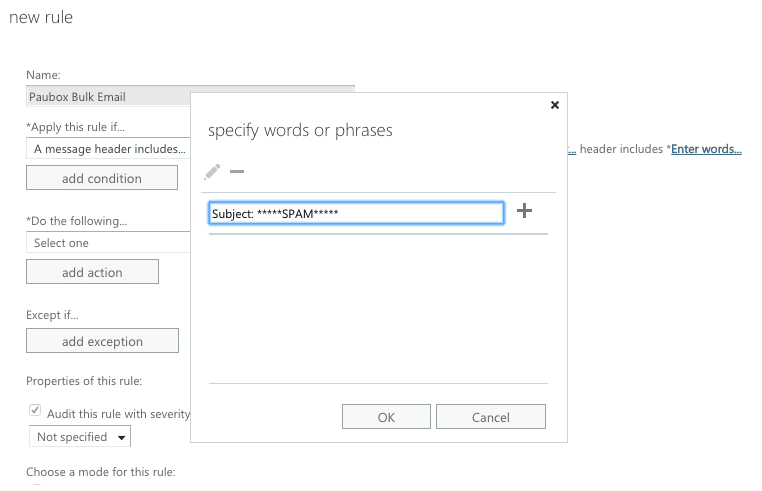
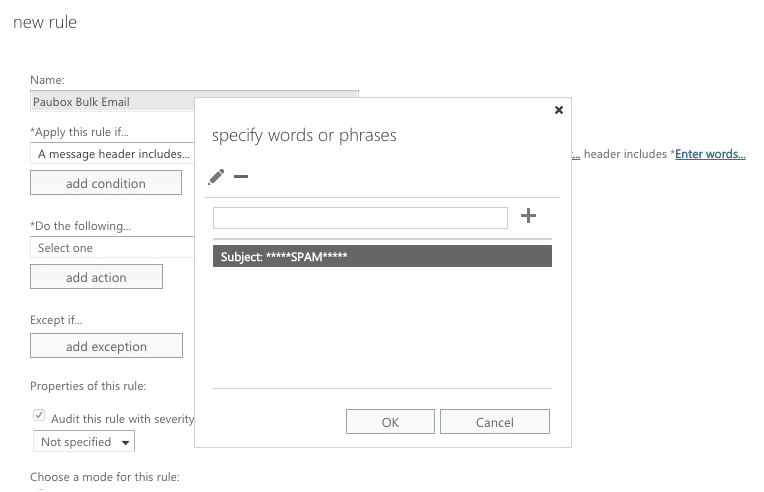
- Now click Enter words..., type Subject: *****SPAM***** and click +. You must click the + button for the entry to take effect.
- You should see a screen similar to the one below. Next click OK.
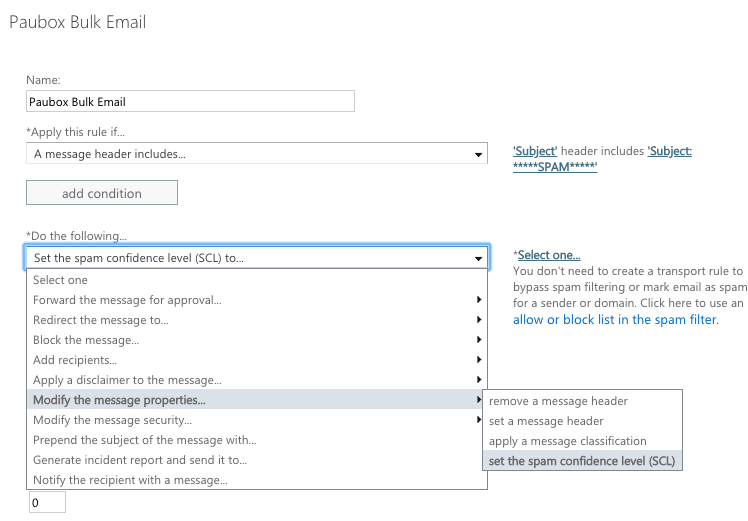
- Under Do the following... select Modify the message properties.. > set the spam confidence level (SCL)
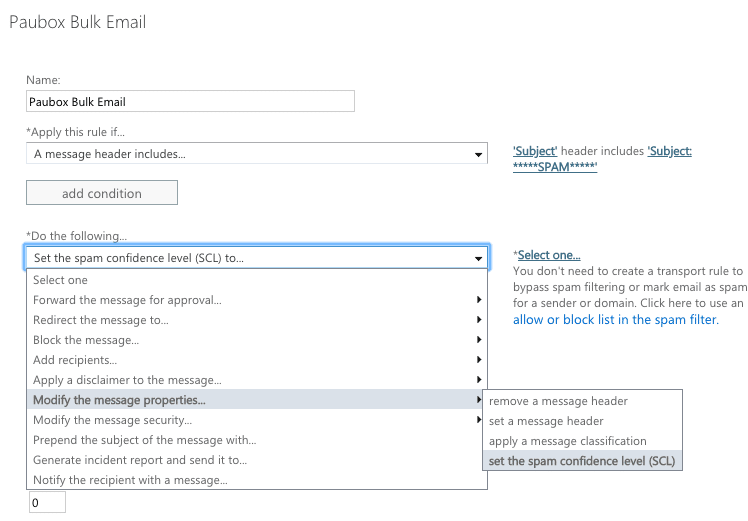
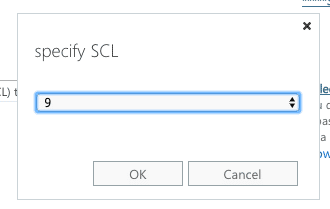
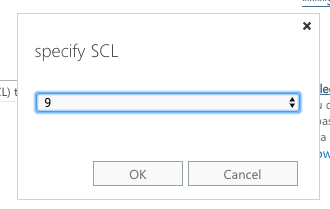
- On the next screen, set the Specify SCL drop-down box to 9 and click OK.
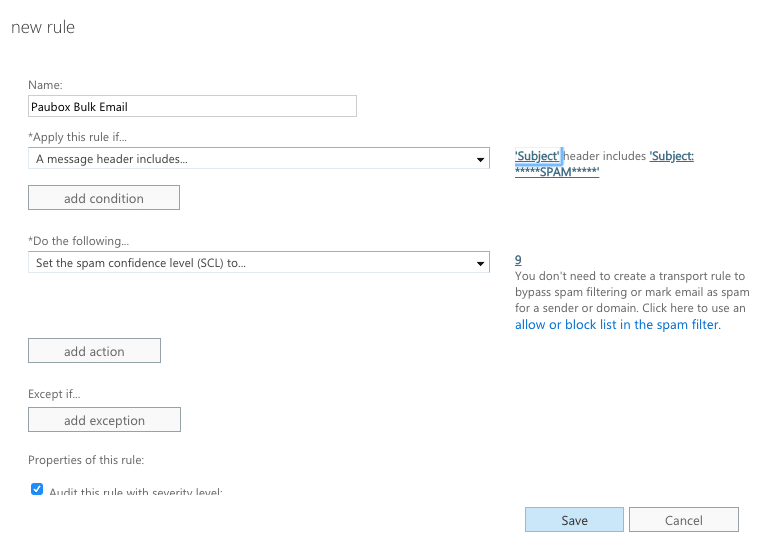
- Your screen should look similar to the one below. Next click Save.