

.svg)
.svg)
.svg)
.svg)
.svg)
.svg)
.svg)
.svg)
.svg)
.svg)
.svg)
.svg)
.svg)
.svg)
.svg)
.svg)
.svg)
.svg)
.svg)
.svg)
.svg)

We’ve all accidentally sent an email too early, without a specific attachment, or to the wrong address. Regardless of how it happened, an accidental email can make you seem too eager, too rushed, or worse: make you violate HIPAA. Sending protected health information ( PHI) accidentally or to the wrong recipient (don’t always trust auto-fill!) is one of the most common causes of data breaches. Luckily, there is a free and easy way to undo a sent email. Anyone can set it up, and we’re going to show you how. We've looked at how to undo sent emails in other email providers:
This post will cover how to undo a sent email in Microsoft Outlook.
Undo a sent Microsoft Outlook email with "Recall This Message"
Recalling a Microsoft Outlook email takes a few steps. These steps work for Outlook 2010, 2013, and 2016.
1. Choose the "Sent" folder in your Outlook folder pane.
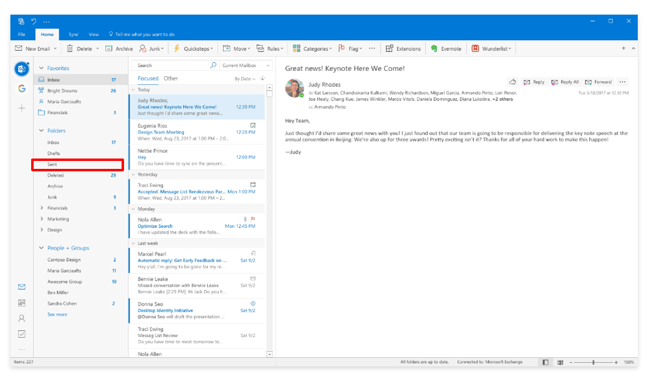
2. Select the message that you want to un-send. Make sure you double-click the message and open it. If the message simply appears as a "preview" in the reading pane, as seen above, you won't be able to find this next step.
3. Under the "Message" section, select "Actions" and then "Recall This Message."
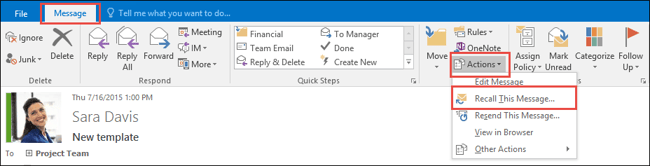
NOTE: If you are not able to find the "Recall This Message" option, the feature may not be available within your organization. Those with a Microsoft Exchange account should be able to see this step.
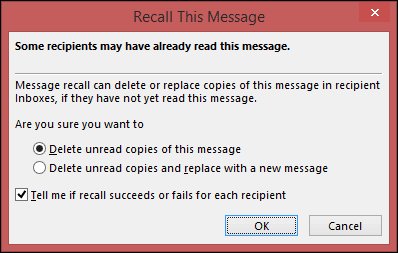
4. After selecting "Recall This Message," you'll have two options:
- Delete unread copies of this message
- Delete unread copies and replace with a new message
Choose whichever option you prefer, and select if you would like to be notified if your recall is successful. Then select "OK."
To compose a replacement message, simply type in the email body as you normally would and select "Send" when finished. And voila! With those simple steps, you now know how to undo a sent email in Microsoft Outlook.

Prevent accidental emails even further with Paubox Email Suite Premium
Even with an undo send feature enabled, you can still miss the window to retract your email. And it happens–we’re only human. With Paubox Email Suite Premium, you can make sure no emails–especially those containing sensitive information–slip through the cracks. Paubox Email Suite Premium allows you to set customizable rules so no sensitive data gets sent accidentally or maliciously. Social security numbers, proprietary information, PHI, and more can be recognized and quarantined from being sent out until you give the final approval. Accidents happen, and it’s always better to be safe than sorry.