

.svg)
.svg)
.svg)
.svg)
.svg)
.svg)
.svg)
.svg)
.svg)
.svg)
.svg)
.svg)
.svg)
.svg)
.svg)
.svg)
.svg)
.svg)
.svg)
.svg)
.svg)
.svg)

Secure email portals can take as many as six clicks before a recipient reads a single message.
We counted it in the Microsoft 365 encrypted message portal, a common portal that healthcare recipients run into. The recipient was on Gmail, the sender was on Microsoft 365 with encryption applied, and the recipient took the one-time passcode route that Microsoft offers to anyone without a Microsoft 365 account.
For a healthcare organization sending lab results, intake paperwork, or a referral, that friction sits between the patient and the information they asked for.
Why it matters
- Opening one encrypted message in the Microsoft 365 portal takes six clicks and about nine seconds, and that is on a desktop with everything going right.
- The one-time passcode that unlocks the message routinely lands in spam. Microsoft documents the spam folder as the first place to look for it.
Six clicks in Microsoft 365, one screen at a time
Click one: Read the message
The encrypted message never arrives as a message. What lands in the inbox is a notification with a button.
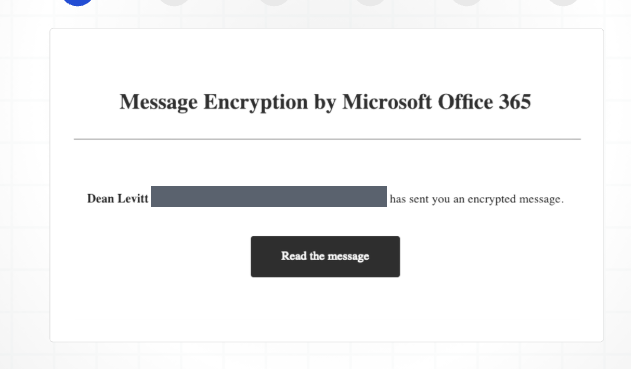
Nothing in this email is the actual content. The recipient has to leave their inbox to get it.
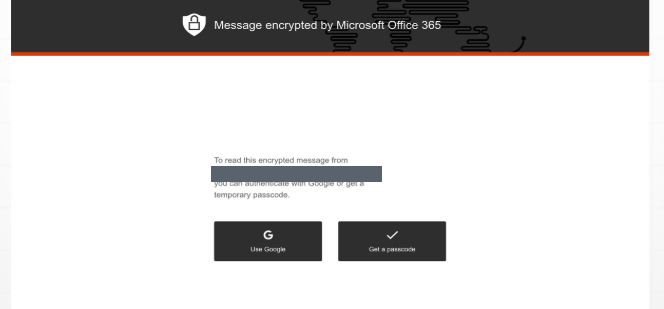
Click two: Choose how to prove who you are
The button opens a browser tab with Microsoft's encrypted message portal, which asks the recipient to authenticate before it will show anything.
Click three: Go back to your inbox
The portal now waits for an eight-digit code that it has emailed separately.
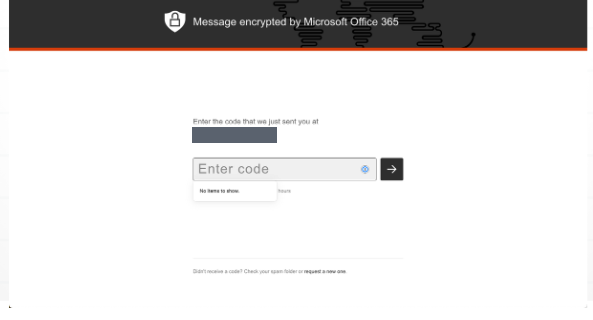
The fine print at the bottom direct them to check their spam folder if they don't receive the email. The recipient clicks back to the inbox tab to hunt for the code.
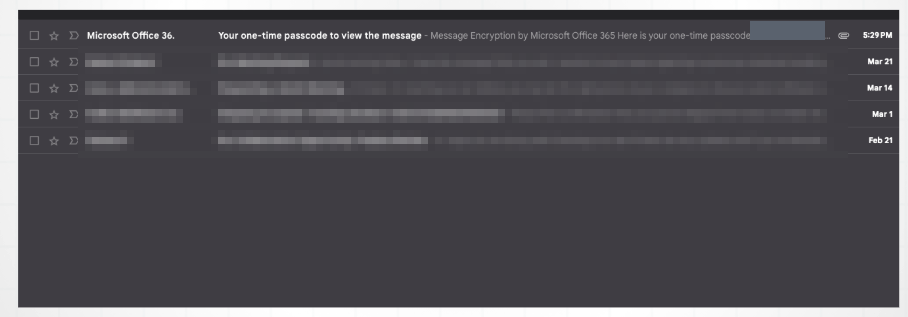
Click four: Find the passcode email
The code arrives in a separate email from Microsoft, competing for attention with everything else that landed in the meantime.
Click five: Copy the code and return to the portal
The passcode email arrived, and it arrived in the spam folder, complete with a warning banner asking whether the recipient wants to report it as not spam.
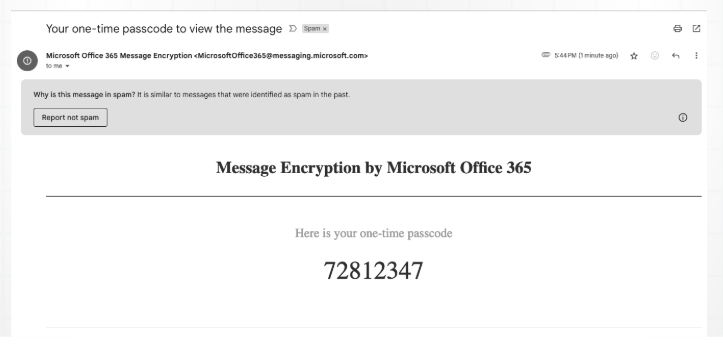
The recipient copies the code, then clicks back to the portal tab still sitting open behind them.
Click six: Enter the code and read the message
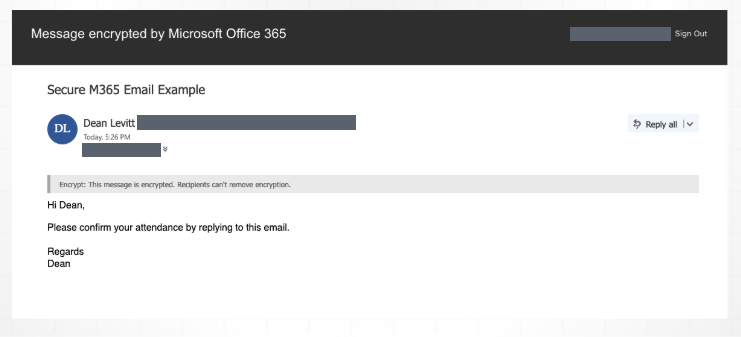
Those six clicks also leaves out scrolling, searching, the decision about whether to trust a message sitting in spam, and any attachment the recipient still has to open. It also assumes the code arrives on the first try and gets used quickly. Microsoft's support documentation notes that "Each passcode expires after 15 minutes." A recipient who steps away from their desk starts over.
This process happens with every encrypted email the recipient receives.
Microsoft expects emails to land in spam
Emails landing in spam is an expected behavior. In the Message Encryption FAQ, under the question about not receiving a passcode, Microsoft writes: "First, check the junk or spam folder in your email client." The same answer goes on to say that these messages, especially the first ones an organization receives, often end up in quarantine.
The flow asks a recipient to click a link in an unexpected email, then retrieve a numeric code from a second unexpected email that their own provider flagged as suspicious, then type that code into a browser page. That is the exact shape of a credential phishing attack, practiced until it feels normal.
Healthcare organizations spend real money training staff and patients not to do that.
Go deeper: Microsoft 365 and the reality of shared responsibility
The same pattern shows up in every portal
Microsoft is the example here because the flow is documented and widely used, but it's the same process for all portal solutions. Something arrives that is not the message, the recipient leaves their inbox, the portal demands proof of identity, and the proof lives somewhere else.
How long the six clicks take
We timed the flow on a desktop and it took nine seconds start to finish.
That nine seconds came from someone who was familiar with the process of opening a portal email. Anyone seeing that screen for the first time may have a longer experience. On a phone, the tab switches become app switches. A passcode that landed in spam has to be hunted down, and one that expired sends the recipient back to the beginning.
At volume, a practice that sends 1,000 encrypted messages in a quarter is asking recipients for two and a half hours of their time. At 10,000 messages, it is 25 hours, more than three working days spent watching an authentication screen instead of reading the message.
What six clicks cost a healthcare organization
In Paubox research, 86% of healthcare IT leaders said their current email security tools cause workflow friction. Their top frustrations included clunky user interfaces (46%), email delays from encryption processes (45%), and staff bypassing secure methods entirely (41%). Every one of those shows up in the flow above.
Healthcare IT teams described the downstream effect in plain terms. "Patients keep calling saying they can't open the message," and "our doctors are just texting files instead."
Both outcomes are worse than the problem the portal was meant to solve. A support call costs staff time, and a text message with protected health information (PHI) in it is a breach waiting to happen.
Read also: Healthcare IT is dangerously overconfident about email security
What zero clicks looks like
Here's where Paubox differs. Paubox seamlessly encrypts emails, and every outbound message is encrypted by default. The recipient opens it in their inbox the way they open everything else. There is no notification email to open first and no passcode to go find. Zero steps, zero training necessary, on Google Workspace and Microsoft 365.
There is one exception and that is when a recipient's mail server cannot support modern, authenticated transport layer security (TLS) encryption. In those cases, Paubox delivers through the Secure Message Center rather than downgrading the encryption or dropping the message. PHI still gets there over a secure path. The Secure Message Center covers the servers that cannot except encryption, while every other recipient reads the message in their inbox.
Related: HIPAA compliant email, the definitive guide
Count the steps on your own system
Send an encrypted message from your organization to a personal address on Gmail, Yahoo, or whatever your patients actually use, then count what it takes to read it.
Whatever number comes back is the number every patient, referral partner, and payer faces on the other end of your secure email. If it is higher than zero, that is the gap worth closing.
Start for free and see what your recipients see when there is nothing to click.